
Ever been asked:
“What does this user actually have access to in SharePoint?”
And you know the answer may potentially be complicated 😅to report on for admins.
Between site memberships, M365 groups, nested security groups, sharing links, and unique permissions, it’s rarely a simple response. Until now, answering that question properly usually meant PowerShell, compiling multiple site specific ‘check user permission’ results, third-party tools, or educated guessing.
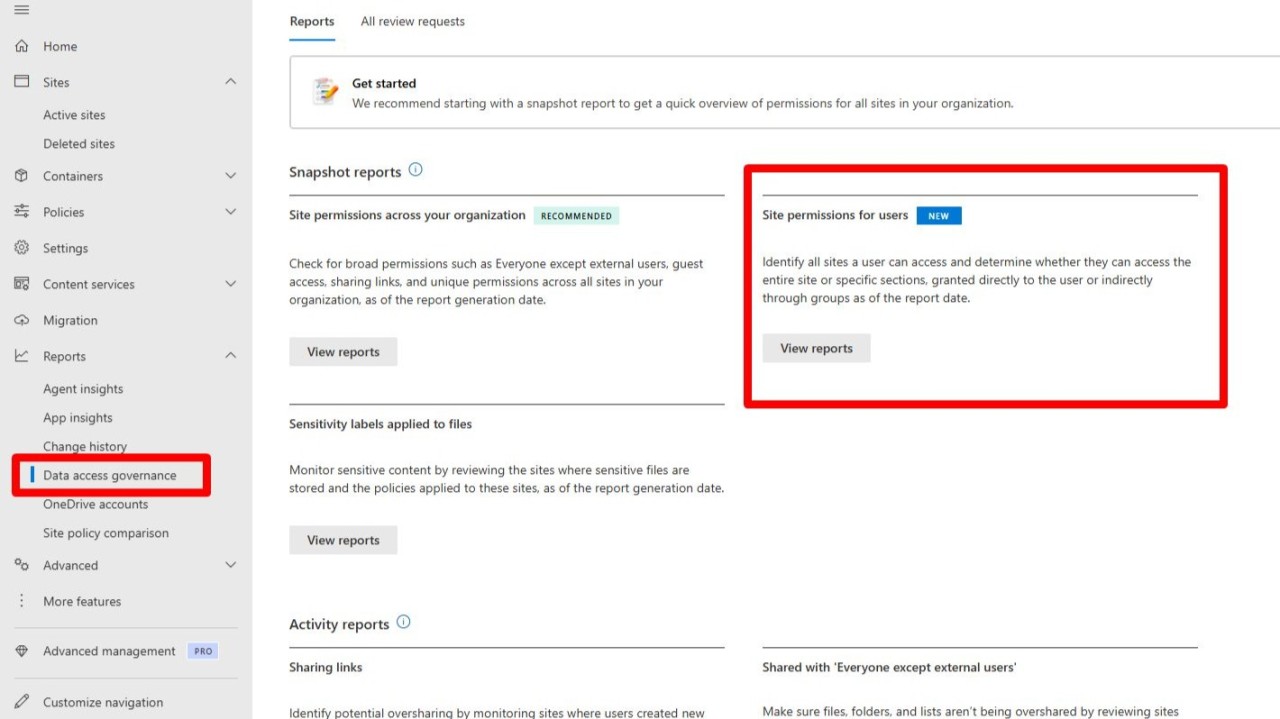
Microsoft has just introduced a new Permissions report in the SharePoint admin center that finally makes this visible in one place — and it’s a big deal if you’re rolling out Microsoft 365 Copilot.

What’s new?
In SharePoint admin center → Reports → Data access governance, Microsoft is rolling out a new report called:
Site permissions for users
This report lets you:
💠Select a specific user
💠See every SharePoint site they can access
💠Understand how they got access
- Direct permission
- Via Microsoft 365 group
- Via security group
💠Identify whether access is:
- Full site access
- Limited to specific sections, lists, libraries, or items
In short: a clear, human-readable answer to “what can this person actually see?”
Why this matters even more with Copilot
Here’s the governance reality many organisations are still catching up to:
👉 If a user has access to content, Copilot has access to that content on their behalf. 👉 If a user’s access is messy, Copilot’s answers will be messy, and potentially risky.
Copilot doesn’t invent permissions. But it does surface information faster, more broadly, and without the user needing to know where it lives.
That makes visibility into permissions a Copilot readiness requirement, not a “nice to have”.
How this report helps with Copilot compliance & governance
1. Validate Copilot exposure before licensing users
Before assigning Copilot licenses, you can now:
💠Pick a user
💠Review exactly what SharePoint content they can access
💠Spot:
- Legacy access they no longer need
- Broad group memberships
- Old project sites still visible
This allows you to reduce oversharing before Copilot amplifies it.
2. Faster “why did Copilot show me this?” investigations
This question is coming. A lot.
With this report, admins can quickly determine:
💠Whether Copilot’s response was valid
💠Which site or permission granted access
💠Whether the issue is:
- A genuine permissions problem
- Or just unexpected (but correct) access
Less panic. Less guesswork. Fewer emergency audits.
3. Cleaner offboarding and role changes
Offboarding has always been about risk, Copilot raises the stakes.
This report helps you:
- Confirm a departing user no longer has access to sensitive SharePoint sites
- Validate department moves don’t leave users with legacy content visibility
- Reduce the chance of Copilot surfacing “old life” data to the wrong people
4. Stronger governance conversations (without PowerShell)
One of the hardest parts of governance is making it understandable.
This report gives you:
💠A concrete way to show business stakeholders:
- “This is what this role can see”
- “This is what Copilot can reason over”
💠Evidence to support:
- Information architecture improvements
- Group cleanup
- Reduced use of ad-hoc sharing links
Governance becomes tangible, not theoretical.
What this doesn’t replace (but complements)
This isn’t a replacement for:
- Information architecture
- Sensitivity labels
- DLP policies
- Good site and group design
But it is a missing visibility layer that makes all of those easier to validate, especially in a Copilot world.
The takeaway
Copilot doesn’t create new access. It reveals the access you already have, faster and more broadly than ever before.
This new “Site permissions for users” report finally gives admins, security teams, and architects the clarity they’ve been missing to:
- Reduce oversharing
- Improve compliance
- Roll out Copilot with confidence
If you’re planning Microsoft 365 Copilot, this report shouldn’t be optional viewing, it should be part of your readiness checklist.
Leave a Reply